

Jira MCP - The most feature-rich MCP server for Jira
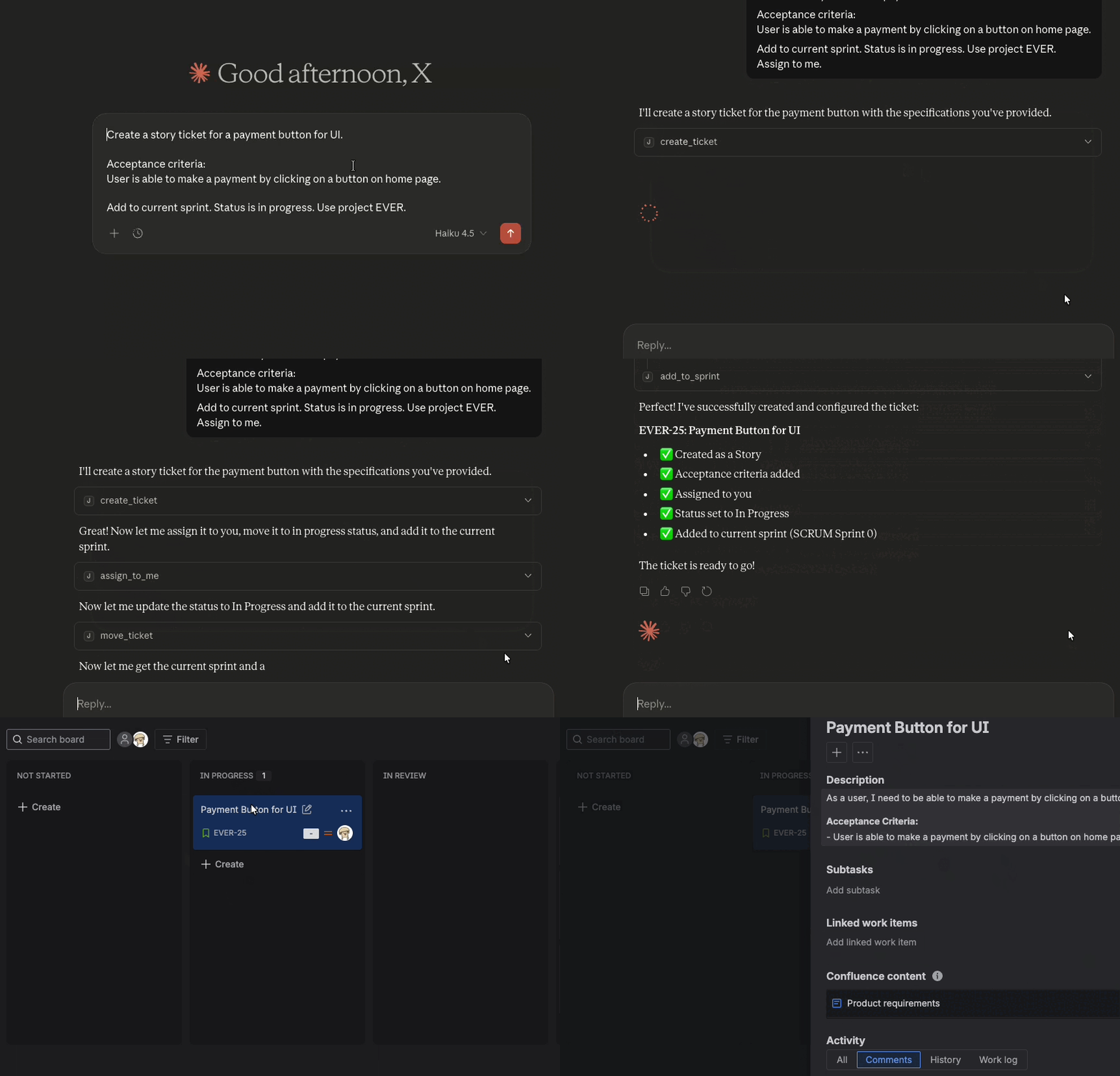







The most powerful and feature-rich MCP server for Jira integration. Control Jira through AI-powered LLM clients like Cursor, Claude Desktop, Windsurf, and ChatGPT using the Model Context Protocol.
Why Jira MCP is the Best Choice
- Enterprise Ready: Runs completely locally with no third-party data sharing. Safe for corporate environments.
- Full-Featured: Complete Jira control including create, update, search, transition, and manage tickets using natural language.
- Easy Setup: Pre-built binaries for Linux, macOS, and Windows. Get started in minutes.
- Actively Maintained: Open source, MIT licensed, with regular updates and community support.
- AI-Native: Built specifically for the Model Context Protocol to provide the best AI-to-Jira experience.
Getting started
Installation
Install jira-cli
The MCP server uses the jira-cli to execute Jira commands.
Follow the installation instructions for your operating system: https://github.com/ankitpokhrel/jira-cli?tab=readme-ov-file#installation
Get Jira API Token
Depending on your implementation of Jira (Cloud or Self-Hosted), you will need to use a different authentication type.
Get your API token from: https://id.atlassian.com/manage-profile/security/api-tokens
You will need to set the following environment variables:
JIRA_API_TOKEN- Your Jira API tokenJIRA_AUTH_TYPE- Authentication type (bearerfor token,basicfor Jira account API token,passwordfor Jira account password)
Recommended: Pass these variables in your MCP client configuration using the
env field (shown in the configuration examples below). This is more reliable
than shell environment variables because GUI applications like Cursor and
Windsurf do not inherit variables from .bashrc or .zshrc.
Other ways to add credentials to your environment: https://github.com/ankitpokhrel/jira-cli/discussions/356
Start Jira CLI
jira init
This should initialize the Jira CLI by asking for your Jira URL and credentials.
Test Jira CLI
jira issue list
This should return a list of issues in Jira.
MCP Server: Option 1: Download binaries (Recommended)
Download the latest release for your operating system from the Releases page.
| Operating System | Binary |
|---|---|
| Linux | jira-mcp-linux |
| Windows | jira-mcp-windows.exe |
| macOS (Apple Silicon) | jira-mcp-macos-apple-silicon-arm64 |
| macOS (Intel) | jira-mcp-macos-x64 |
Linux
# Download the binary
curl -L -o jira-mcp https://github.com/xcollantes/jira-mcp/releases/latest/download/jira-mcp-linux

# Make it executable
chmod +x jira-mcp

# Move to a directory in your PATH (optional)
sudo mv jira-mcp /usr/local/bin/
Add to your LLM client configuration:
NOTE: Make sure to replace /usr/local/bin/jira-mcp with the path to the
binary on your machine if you moved it to a different location.
{
  "mcpServers": {
    "jira": {
      "command": "/usr/local/bin/jira-mcp",
      "env": {
        "JIRA_API_TOKEN": "your-api-token",
        "JIRA_AUTH_TYPE": "basic"
      }
    }
  }
}
macOS
# For Apple Silicon (M1/M2/M3)
curl -L -o jira-mcp https://github.com/xcollantes/jira-mcp/releases/latest/download/jira-mcp-macos-apple-silicon-arm64

# For Intel Macs
curl -L -o jira-mcp https://github.com/xcollantes/jira-mcp/releases/latest/download/jira-mcp-macos-x64

# Make it executable
chmod +x jira-mcp

# Move to a directory in your PATH (optional)
sudo mv jira-mcp /usr/local/bin/
Note: macOS may block the binary on first run. If you see a security warning, go to System Settings > Privacy & Security and click Allow Anyway, or run:
xattr -d com.apple.quarantine /usr/local/bin/jira-mcp
Add to your LLM client configuration:
NOTE: Make sure to replace /usr/local/bin/jira-mcp with the path to the
binary on your machine if you moved it to a different location.
{
  "mcpServers": {
    "jira": {
      "command": "/usr/local/bin/jira-mcp",
      "env": {
        "JIRA_API_TOKEN": "your-api-token",
        "JIRA_AUTH_TYPE": "basic"
      }
    }
  }
}
Windows
- Download
jira-mcp-windows.exefrom the Releases page. - Move the executable to a convenient location (e.g.,
C:\Program Files\jira-mcp\).
Add to your LLM client configuration:
{
  "mcpServers": {
    "jira": {
      "command": "C:\\Program Files\\jira-mcp\\jira-mcp-windows.exe",
      "env": {
        "JIRA_API_TOKEN": "your-api-token",
        "JIRA_AUTH_TYPE": "basic"
      }
    }
  }
}
NOTE: Make sure to replace C:\\Program Files\\jira-mcp\\jira-mcp-windows.exe with the path to the binary on your
machine if you moved it to a different location.
MCP Server: Option 2: Development setup with uv
Get repo:
git clone https://github.com/xcollantes/jira-mcp.git
cd jira-mcp
Add MCP server to your choice of LLM client:
NOTE: You will need to look up for your specific client on how to add MCPs.
Usually the JSON file for the LLM client will look like this:
{
  "mcpServers": {
    "jira": {
      "command": "uv",
      "args": [
        "--directory",
        "/ABSOLUTE/PATH/TO/REPO/ROOT",
        "run",
        "python",
        "-m",
        "src.main"
      ],
      "env": {
        "JIRA_API_TOKEN": "your-api-token",
        "JIRA_AUTH_TYPE": "basic"
      }
    }
  }
}
This will tell your LLM client application that there's a tool that can be
called by calling uv --directory /ABSOLUTE/PATH/TO/REPO run python -m src.main.
Install UV: https://docs.astral.sh/uv/getting-started/installation/
MCP Server: Option 3: Install globally with pipx
# Install pipx if you haven't already
brew install pipx
pipx ensurepath

# Clone and install the MCP server
git clone https://github.com/xcollantes/jira-mcp.git
cd jira-mcp
pipx install -e .
How it works
- You enter some questions or prompt to a LLM Client such as the Claude Desktop, Cursor, Windsurf, or ChatGPT.
- The client sends your question to the LLM model (Sonnet, Grok, ChatGPT)
- LLM analyzes the available tools and decides which one(s) to use
- The LLM you're using will have a context of the tools and what each tool is meant for in human language.
- Alternatively without MCPs, you could include in the prompt the endpoints and a description on each endpoint for the LLM to "call on". Then you could copy and paste the text commands into the terminal on your machine.
- MCPs provide a more deterministic and standardized method on LLM-to-server interactions.
- The client executes the chosen tool(s) through the MCP server.
- The MCP server is either running local on your machine or an endpoint hosting the MCP server remotely.
- The results are sent back to LLM.
- LLM formulates a natural language response and one or both of the following
happen:
- The response is displayed to you with data from the MCP server
- Some action is performed using the MCP server
Development
Logging
Do not use print statements for logging. Use the logging module instead.
Writing to stdout will corrupt the JSON-RPC messages and break your server.
Pre-commit
This project uses pre-commit to run ruff linting and formatting checks, and pytest tests before each commit.
To set up pre-commit hooks:
uv sync
uv run pre-commit install
Once installed, ruff and pytest will automatically run when you commit. To run checks manually on all files:
uv run pre-commit run --all-files
Docstrings / Tool decorator parameters
MCP.tools decorator parameters are especially important as this is the human readable text that the LLM has context of. This will be treated as part of the prompt when fed to the LLM and this will decide when to use each tool.
Architecture
MCP follows a client-server architecture where an MCP host (an AI application like Cursor or ChatGPT desktop) establishes connections to one or more MCP servers. The MCP host accomplishes this by creating one MCP client for each MCP server. Each MCP client maintains a dedicated connection with its corresponding MCP server.
https://modelcontextprotocol.io/docs/learn/architecture
Pitfalls / Troubleshooting
Edit the jira-cli config file
On MacOS:
/Users/<your-username>/.config/.jira/.config.yml
404 error when using jira init
If you get a 404 error when using jira init, you may need to edit the jira-cli
config file to point to the correct Jira instance. There are only 3 possible
values for the auth type so try each one. basic, password, or bearer.