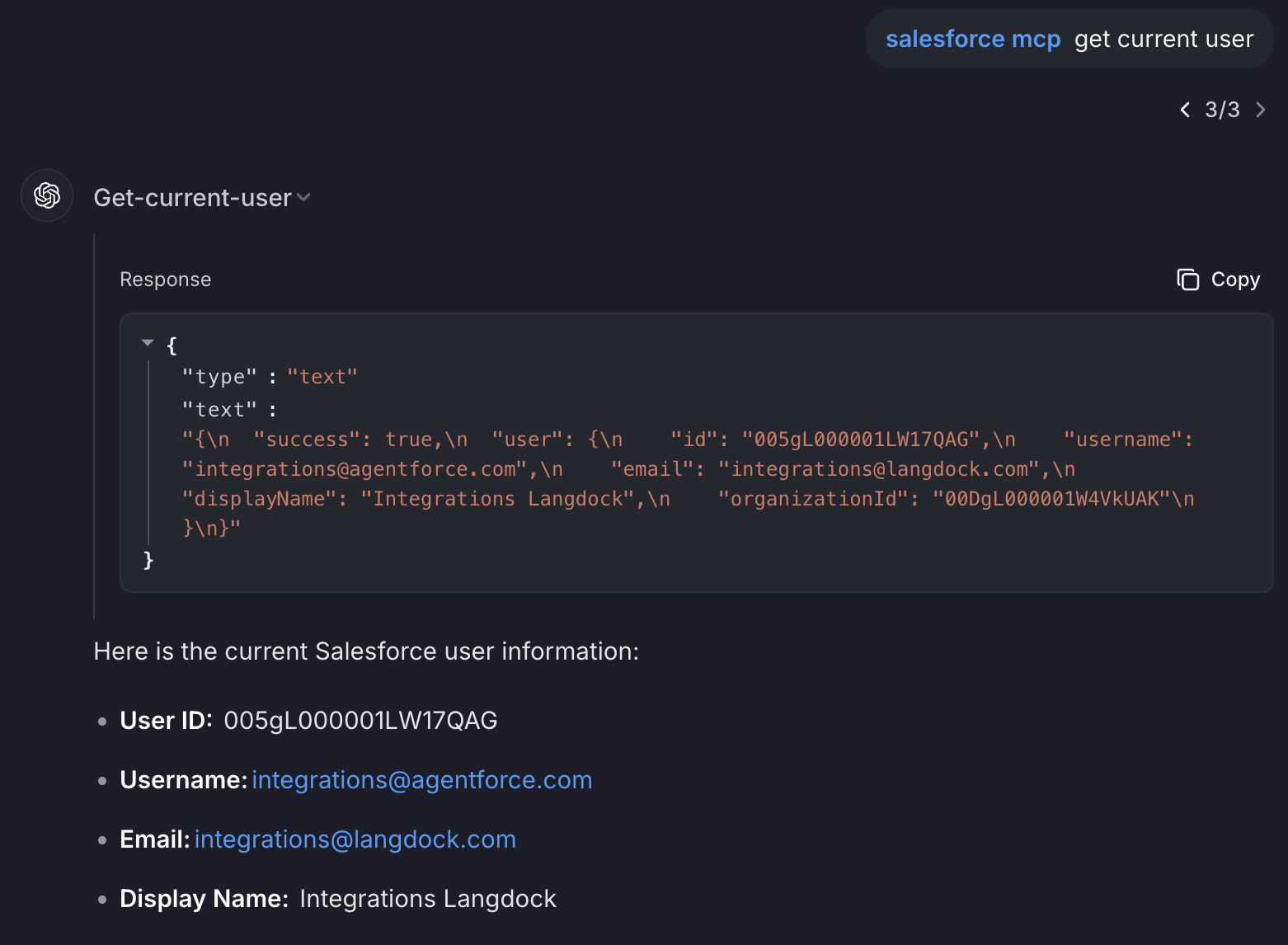
Salesforce MCP Server
A Model Context Protocol (MCP) server for Salesforce integration with Bearer token forwarding.
How it Works
This MCP server demonstrates the OAuth Bearer token forwarding pattern:
- Langdock authenticates with Salesforce using your External Client App OAuth configuration
- Langdock receives a Bearer token from Salesforce
- Langdock forwards this Bearer token to your MCP server in the
Authorizationheader - Your MCP server extracts this token and uses it to make authenticated API calls to Salesforce
The server stores the Bearer token per session, allowing it to maintain authenticated connections to Salesforce throughout the MCP session lifecycle.
Installation / Setup
pnpm i
Environment Setup
Create a .env file in the root directory with your Salesforce configuration:
# Copy from .env.example
SALESFORCE_INSTANCE_URL=https://your-instance.my.salesforce.com
The server uses the Salesforce instance URL from the SALESFORCE_INSTANCE_URL environment variable.
Configuration
The server requires:
- Bearer token in the
Authorizationheader (format:Bearer YOUR_TOKEN) - Salesforce instance URL via
SALESFORCE_INSTANCE_URLenvironment variable (see Environment Setup above)
Salesforce setup
-
Enable API Access, go to: Setup → Profiles → [Your Profile] → System Permissions
a. Make sure API Enabled is checked. Without this, no external app can reach Salesforce.
-
Add a Connected App. You need to go to Setup → Apps → App Manager (https://your-instance.develop.lightning.force.com/lightning/setup/NavigationMenus/home).
a. Create a new Connected App
b. Name your app
c. Enable OAuth Settings
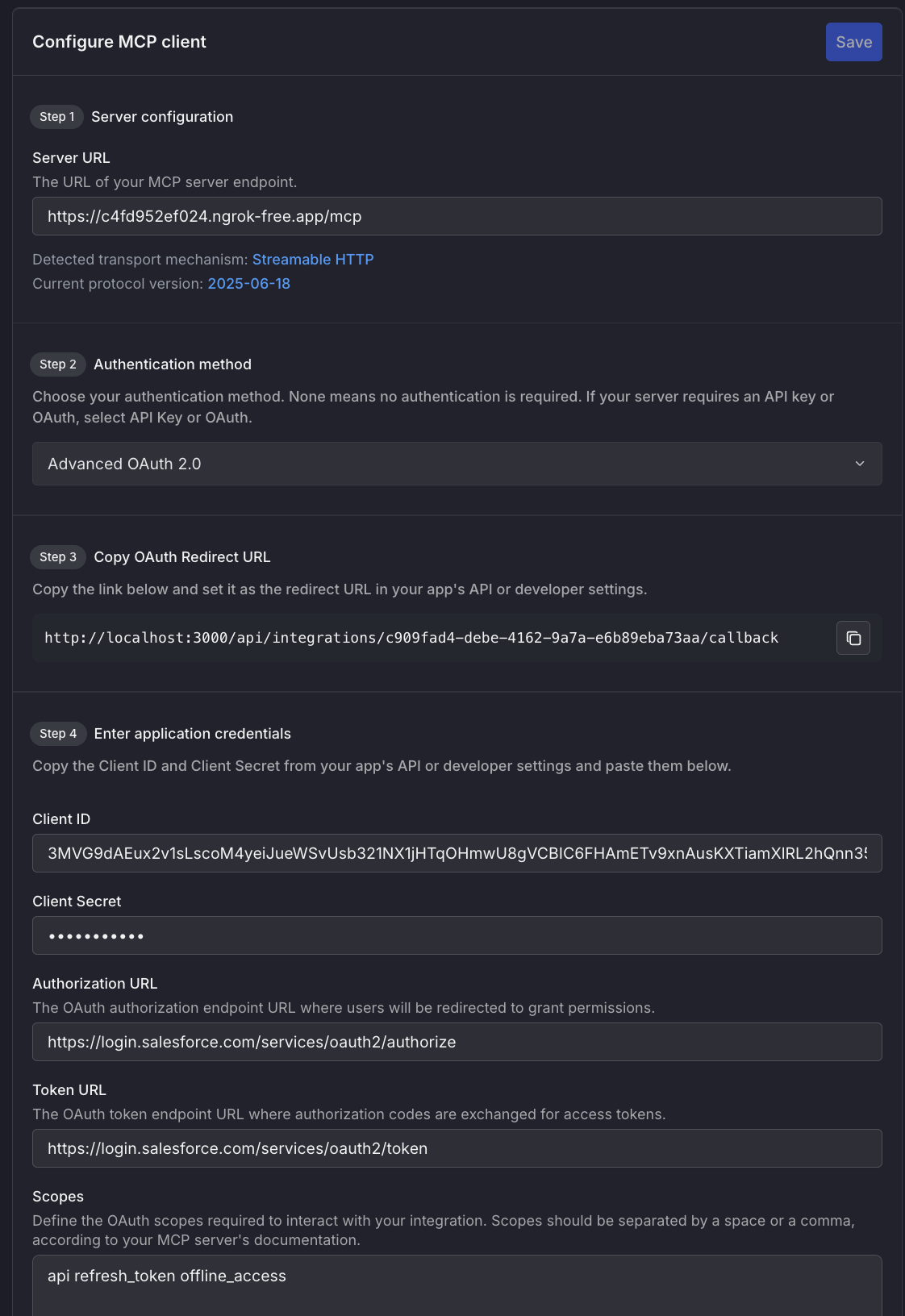
d. Set the callbackk url from /mcp on langdock
e. Add scopes like: full, refresh_token, api
f. Save your Consumer Key and Consumer Secret
Connecting with Langdock
Start the server
pnpm dev # runs on port 3333
Tunnel using ngrok
ngrok http 3333
Configure MCP client in Langdock
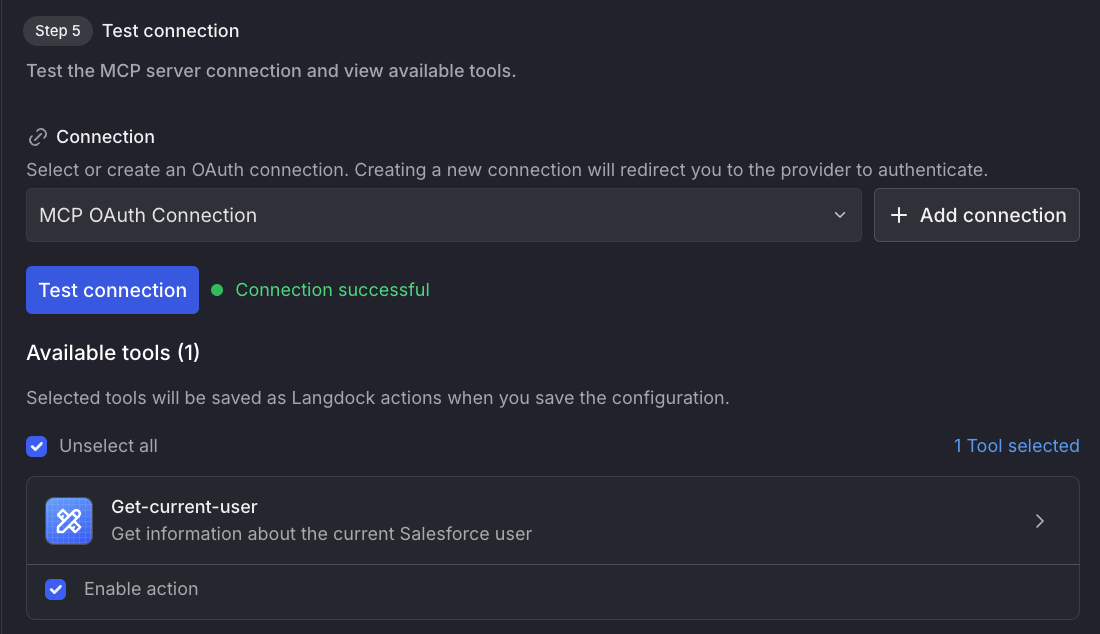
Then create and test the connection