
DeepL MCP Server
A Model Context Protocol (MCP) server that provides translation capabilities using the DeepL API using python and fastmcp.
Working Demo
Features
- Translate text between numerous languages
- Rephrase text using DeepL's capabilities
- Access to all DeepL API languages and features
- Automatic language detection
- Formality control for supported languages
- Batch translation and document translation
- Usage and quota reporting
- Translation history and usage analysis
- Support for multiple MCP transports: stdio, SSE, and Streamable HTTP
Installation
Standard (Local) Installation
-
Clone the repository:
git clone https://github.com/AlwaysSany/deepl-fastmcp-python-server.git cd deepl-fastmcp-python-server -
Install uv (recommended) or use pip:
With pip,
pip install uvWith pipx,
pipx install uv -
Install dependencies:
uv sync -
Set your environment variables:
Create a
.envfile or exportDEEPL_AUTH_KEYin your shell.You can do this by running the following command and then update the.envfile with your DeepL API key:cp .env.example .envExample
.envfile,DEEPL_AUTH_KEY=your_deepl_api_key -
Run the server:
Normal mode:
uv run python main.py --transport stdioTo run with Streamable HTTP transport (recommended for web deployments):
uv run python main.py --transport streamable-http --host 127.0.0.1 --port 8000To run with SSE transport:
uv run python main.py --transport sse --host 127.0.0.1 --port 8000Development mode:
uv run mcp dev main.py
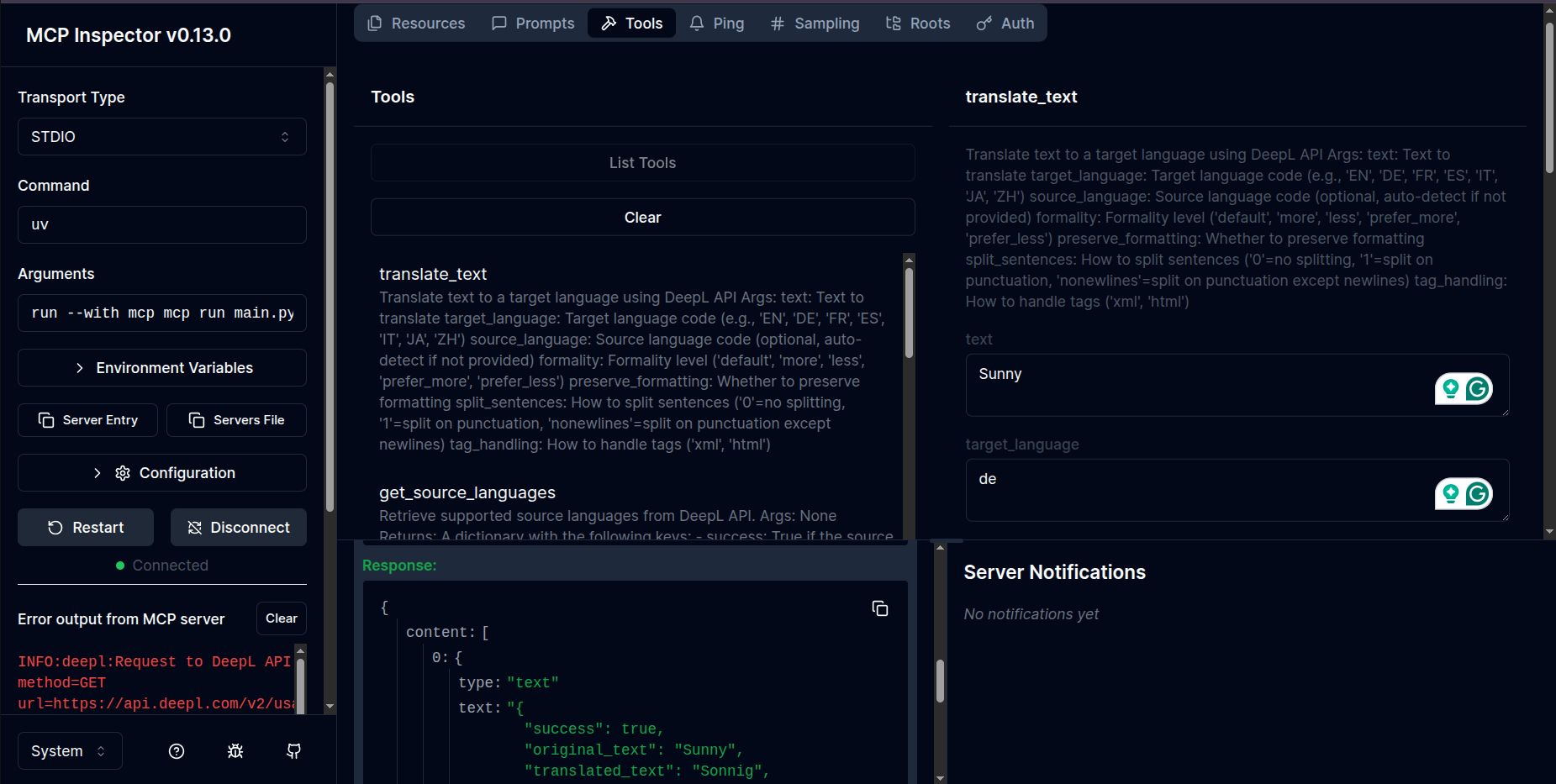
It will show some messages in the terminal like this:
Spawned stdio transport Connected MCP client to backing server transport
Created web app transport
Set up MCP proxy
🔍 MCP Inspector is up and running at http://127.0.0.1:6274
MCP Inspector,
Dockerized Installation
-
Build the Docker image:
docker build -t deepl-fastmcp-server . -
Run the container:
docker run -e DEEPL_AUTH_KEY=your_deepl_api_key -p 8000:8000 deepl-fastmcp-server
Docker Compose
-
Create a
.envfile in the project root:DEEPL_AUTH_KEY=your_deepl_api_key -
Start the service:
docker compose up --buildThis will build the image and start the server, mapping port 8000 on your host to the container.
Configuration
DeepL API Key
You'll need a DeepL API key to use this server. You can get one by signing up at DeepL API. With a DeepL API Free account you can translate up to 500,000 characters/month for free.
Required environment variables:
DEEPL_AUTH_KEY(required): Your DeepL API key.DEEPL_SERVER_URL(optional): Override the DeepL API endpoint (default:https://api-free.deepl.com).
MCP Transports
This server supports the following MCP transports:
- Stdio: Default transport for local usage.
- SSE (Server-Sent Events): Ideal for real-time event-based communication.
- Streamable HTTP: Suitable for HTTP-based streaming applications.
To configure these transports, ensure your environment supports the required protocols and dependencies.
Usage
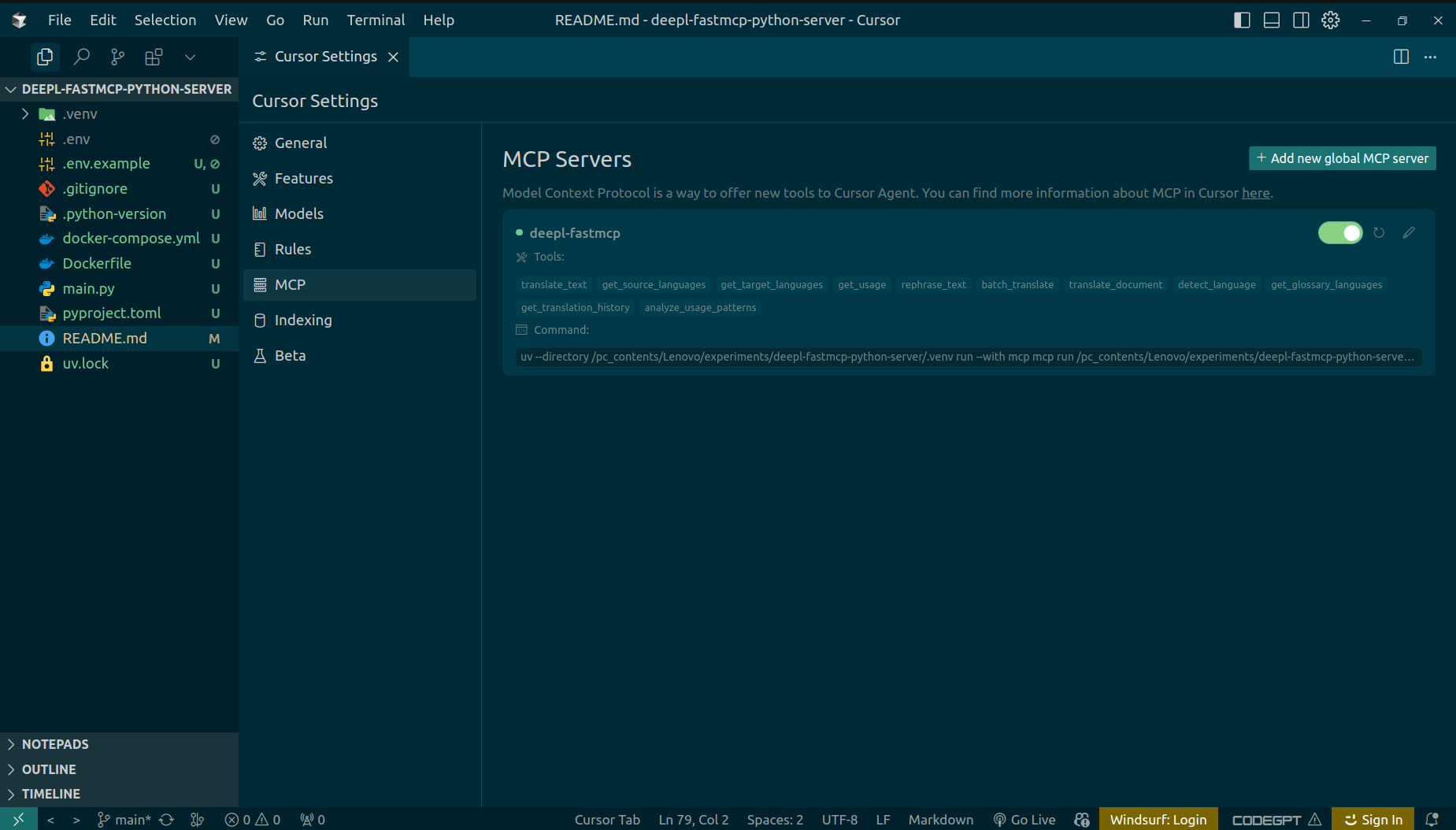
Use with Cursor IDE,
Click on File > Preferences > Cursor Settings > MCP > MCP Servers > Add new global MCP server
and paste the following json:
{
  "mcpServers": {
    "deepl-fastmcp": {
      "command": "uv",
      "args": [
        "--directory",
        "/path/to/yourdeepl-fastmcp-python-server/.venv",
        "run",
        "--with",
        "mcp",
        "python",
        "/path/to/your/deepl-fastmcp-python-server/main.py",
        "--transport",
        "streamable-http",
        "--host",
        "127.0.0.1",
        "--port",
        "8000"
      ]
    }
  }
}
Note: To use Streamable HTTP or SSE transports with Cursor IDE, change the "--transport", "stdio" line to "--transport", "streamable-http", "--host", "127.0.0.1", "--port", "8000" or "--transport", "sse", "--host", "127.0.0.1", "--port", "8000" respectively, and adjust the host and port as needed.
For example,
  "mcpServers": {
    "deepl-fastmcp": {
        "type": "sse",
        "url": "http://127.0.0.1:8000/sse"
    }
  }
and then run mcp server from terminal uv run main.py --transport sse --host 127.0.0.1 --port 8000
Cursor Settings,
Use with Claude Desktop
This MCP server integrates with Claude Desktop to provide translation capabilities directly in your conversations with Claude.
Configuration Steps
-
Install Claude Desktop if you haven't already
-
Create or edit the Claude Desktop configuration file:
- On macOS:
~/Library/Application Support/Claude/claude_desktop_config.json - On Windows:
%AppData%\Claude\claude_desktop_config.json - On Linux:
~/.config/Claude/claude_desktop_config.json
- On macOS:
-
Add the DeepL MCP server configuration:
{
  "mcpServers": {
    "deepl-fastmcp": {
      "command": "uv",
      "args": [
        "--directory",
        "/path/to/yourdeepl-fastmcp-python-server/.venv",
        "run",
        "--with",
        "mcp",
        "python",
        "/path/to/your/deepl-fastmcp-python-server/main.py",
        "--transport",
        "streamable-http",
        "--host",
        "127.0.0.1",
        "--port",
        "8000"
      ]
    }
  }
}
Note: To use Streamable HTTP or SSE transports with Claude Desktop, change the "--transport", "stdio" line to "--transport", "streamable-http", "--host", "127.0.0.1", "--port", "8000" or "--transport", "sse", "--host", "127.0.0.1", "--port", "8000" respectively, and adjust the host and port as needed.
Available Tools
This server provides the following tools:
translate_text: Translate text to a target languagerephrase_text: Rephrase text in the same or different languagebatch_translate: Translate multiple texts in a single requesttranslate_document: Translate a document file using DeepL APIdetect_language: Detect the language of given textget_translation_history: Get recent translation operation historyanalyze_usage_patterns: Analyze translation usage patterns from history
Available Resources
The following resources are available for read-only data access (can be loaded into LLM context):
usage://deepl: DeepL API usage info.deepl://languages/source: Supported source languages.deepl://languages/target: Supported target languages.deepl://glossaries: Supported glossary language pairs.history://translations: Recent translation operation history (same asget_translation_historytool)usage://patterns: Usage pattern analysis (same asanalyze_usage_patternstool)
Available Prompts
The following prompt is available for LLMs:
-
summarize: Returns a message instructing the LLM to summarize a given text.Example usage:
@mcp.prompt("summarize")
def summarize_prompt(text: str) -> str:
    return f"Please summarize the following text:\n\n{text}"
Tool Details
🖼️ Click to see the tool details
translate_text
Translate text between languages using the DeepL API.
- Parameters:
text: The text to translatetarget_language: Target language code (e.g., 'EN', 'DE', 'FR', 'ES', 'IT', 'JA', 'ZH')source_language(optional): Source language codeformality(optional): Controls formality level ('less', 'more', 'default', 'prefer_less', 'prefer_more')preserve_formatting(optional): Whether to preserve formattingsplit_sentences(optional): How to split sentencestag_handling(optional): How to handle tags
rephrase_text
Rephrase text in the same or different language using the DeepL API.
- Parameters:
text: The text to rephrasetarget_language: Language code for rephrasingformality(optional): Desired formality levelcontext(optional): Additional context for better rephrasing
batch_translate
Translate multiple texts in a single request.
- Parameters:
texts: List of texts to translatetarget_language: Target language codesource_language(optional): Source language codeformality(optional): Formality levelpreserve_formatting(optional): Whether to preserve formatting
translate_document
Translate a document file using DeepL API.
- Parameters:
file_path: Path to the document filetarget_language: Target language codeoutput_path(optional): Output path for translated documentformality(optional): Formality levelpreserve_formatting(optional): Whether to preserve document formatting
detect_language
Detect the language of given text using DeepL.
- Parameters:
text: Text to analyze for language detection
get_translation_history
- No parameters required. See tool output for details.
analyze_usage_patterns
- No parameters required. See tool output for details.
Supported Languages
The DeepL API supports a wide variety of languages for translation. You can use the get_source_languages and get_target_languages tools, or the deepl://languages/source and deepl://languages/target resources, to see all currently supported languages.
Some examples of supported languages include:
- English (en, en-US, en-GB)
- German (de)
- Spanish (es)
- French (fr)
- Italian (it)
- Japanese (ja)
- Chinese (zh)
- Portuguese (pt-BR, pt-PT)
- Russian (ru)
- And many more
Debugging
For debugging information, visit the MCP debugging documentation.
Error Handling
If you encounter errors with the DeepL API, check the following:
- Verify your API key is correct
- Make sure you're not exceeding your API usage limits
- Confirm the language codes you're using are supported
Deploy on server
To deploy on a server(render.com), you need to compile your pyproject.toml to requirements.txt
because it doesn't support uv right now. So to do that, you can use the following commands:
uv pip compile pyproject.toml > requirements.txt
then, create a runtime.txt file with the python version,
echo "python-3.13.3" > runtime.txt
finally, set the environment variable PORT, DEEPL_SERVER_URL and DEEPL_AUTH_KEY with your DeepL API key on render.com workspace before you set the entry point,
python main.py --transport sse --host 0.0.0.0 --port 8000
Deployment
The MCP server is live and accessible on Render.com.
Live Endpoint:
https://deepl-fastmcp-python-server.onrender.com/sse
You can interact with the API at the above URL.

License
MIT
TODOs
- Add more test cases
- Add more features
- Add more documentation
- Add more security features
- Add more logging
- Add more monitoring
- Add more performance optimization
Contributing
Contributions are welcome! If you have suggestions for improvements or new features, please open an issue or submit a pull request.
See more at Contributing
Contact
- Author: Sany Ahmed
- Email: sany2k8@gmail.com